
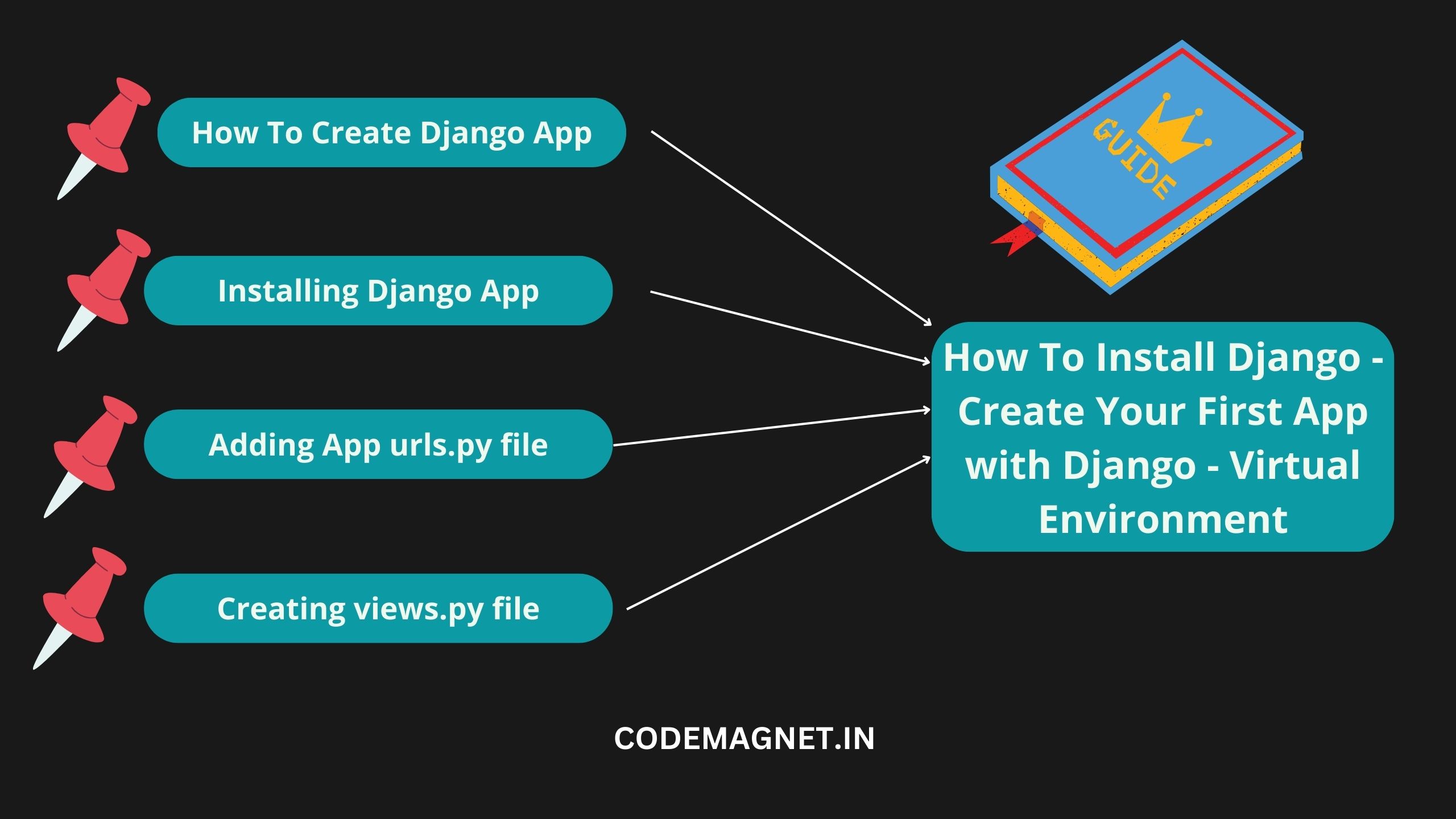
Django is a high-level Python web framework encouraging rapid development and clean, pragmatic design. It’s used by some of the world’s busiest sites, allowing developers to build web applications quickly and efficiently. In this article, we’ll walk you through installing Django and explain why it’s a popular choice for web development.
Step 1: Install Python Before installing Django, we need to have Python installed on our system. You can download Python from the official website (https://www.python.org/downloads/) and follow the installation instructions for your operating system.
If you already have Python installed then make sure you check the version of Python and pip by these commands in your terminal
python3 --version
pip --version
If everything was installed correctly, you will see the installed version.
After ensuring that Python and pip are installed on your computer, you need to install a virtual environment before installing Django.
What is a Virtual Environment?
a virtual environment in Django is like a separate room in your computer where you can work on your Django projects without affecting the rest of your computer. It keeps all the files and dependencies for your project isolated from other projects or system files. This helps to keep your projects organized and prevents conflicts between different projects or versions of Python packages.
Now depending on your operating system, you can execute the following commands to install a virtual environment:
- The first command you’ll need to run is(command prompt windows):
python3 -m venv project_env
in the above code
The venv module is like a tool that helps you create a special space on your computer for your project. You need to give this space a name, just like naming a file. It’s important not to use spaces in the name, so you can use camel case (like “projectEnv”) or underscores (_) or dashes (-) instead. In this example, we’re calling our space “project_env,” but you can choose any name you like.
2. Now the environment is created but we need to activate it so for that (Activation is a little different depending on what operating system you’re using)
On Windows, you need to begin the command with your environment name followed by Scripts\activate.bat like so:
project_env\Scripts\.activate.bat
You’ll know you’re in the virtual environment when you see its name in parentheses before every directory in your command prompt or terminal, like this: (project_env). This works the same way on both Windows and Mac computers.
On Windows:
(project_env) c:\Users\username>
On Mac:
(project_env) username ~ %Installing Django in our virtual environment
Now that your special project space is set up and ready to go, you can install Django. The process of installing Django is the same for both Windows and Mac computers.
pip3 install django
This command will automatically install the latest version of Django for use.
However, if we want to install a specific version of Django we can use the following command:
pip3 install Django==3.2Whichever command you decide to use, it may take up to 30 seconds or longer to install Django depending on your internet speed. If Django was successfully installed you’ll get a message of Successfully installed django-X.X. Where the X.X is the version number, like 3.2.

Once installed You can further check what version of Django you’re on by using the command:
django-admin --versionGreat job! You’ve successfully set up a virtual environment on your computer to work on your projects. You’ve also installed Django in your virtual environment and checked its version. This is just the beginning of your Django journey. Have fun creating awesome projects!
How To Create a Django Project?
- Now that Django is installed, we can create a new Django project. In your terminal or command prompt, navigate to the directory where you want to create your project and run the following command:
python -m django startproject myprojectWhen you run this command, Django will create a new directory called myproject with the basic structure and files required for a Django project inside your current directory. This includes files like manage.py, which is used to manage your Django project, and a subdirectory with the same name (myproject in this case) containing the settings and other configurations for your project.
2. Run the Development Server Navigate into the myproject directory and run the following command to start the Django development server:
python manage.py runserver
This will start the development server, and you can access your Django project by visiting http://127.0.0.1:8000/ in your web browser.
It will look like this when you visit the server at the mentioned HTTP above

3. Now let’s create a polling app
To create your app, make sure you’re in the same directory as manage.py and type this command:
python manage.py startapp polls
That’ll create a directory polls, which is laid out like this:


This directory structure will house the poll application.
Now lets go ahead and write our first view:
Let’s write the first view. Open the file polls/views.py and put the following Python code in it:
from django.http import HttpResponse


def index(request):
    return HttpResponse("Hello, world. You're at the polls index.")
To call the view, we need to map it to a URL – and for this we need a URLconf.
To create a URLconf in the polls directory, create a file called urls.py. Your app directory should now look like:
polls/
    __init__.py
    admin.py
    apps.py
    migrations/
        __init__.py
    models.py
    tests.py
    urls.py
    views.py
In the polls/urls.py file include the following code:
from django.urls import path

from . import views

urlpatterns = [
    path("", views.index, name="index"),
]
The next step is to point the root URLconf at the polls.urls module. In mysite/urls.py, add an import for django.urls.include and insert an include() in the urlpatterns list, so you have:
from django.contrib import admin
from django.urls import include, path

urlpatterns = [
    path("polls/", include("polls.urls")),
    path("admin/", admin.site.urls),
]
The include() function in Django is used to reference other URL configurations. When Django encounters include(), it takes the part of the URL that has been matched so far, removes it, and passes the remaining string to the included URL configuration for further processing.
The purpose of include() is to facilitate easy integration of URLs. For example, if your polls are defined in a separate URL configuration file (polls/urls.py), you can include them under different paths such as “/polls/”, “/fun_polls/”, or “/content/polls/”, and Django will still be able to route requests to the correct view functions. This makes it simple to organize and maintain your project’s URLs.

Now lets run the server !
Go to http://127.0.0.1:8000/polls/ in your browser, and you should see the text “Hello, world. You’re at the polls index.”, which you defined in the index view.
Conclusion: Django is a powerful web framework that simplifies the process of building web applications. It provides a clean and efficient way to design and develop web applications, making it an excellent choice for both beginners and experienced developers. By following the steps outlined in this article, you can get started with Django and begin building your own web applications.




Leave a Reply