

In the world of data analysis and automation, Excel is a widely used tool for storing and organizing data. However, manually scanning through rows of data to find specific information can be time-consuming and error-prone, especially in large datasets.
Fortunately, Python provides powerful libraries like pandas, which can automate this process, making it much more efficient and reliable. By using pandas, you can easily load an Excel file into a DataFrame and then use Python’s programming capabilities to scan through the rows and find the specific data you’re looking for.
In this tutorial, we will explore how to automate the process of scanning through rows to find specific data in an Excel table using Python and pandas. We will demonstrate this with a practical example, showing you step-by-step how to load an Excel file, define the target value you want to find, and then use pandas to scan through the rows and locate the target value. This approach can be applied to various real-life scenarios, such as finding a specific employee’s name in a list or identifying products with low stock in an inventory. By the end of this tutorial, you will have a solid understanding of how to automate the process of searching for specific data in Excel tables, empowering you to efficiently handle and analyze large datasets with ease.
To automate scanning through rows to find specific data in an Excel table using Python, you can use the pandas library along with the xlrd or openpyxl library to read Excel files
import pandas as pd

# Load Excel file into a DataFrame
df = pd.read_excel('Indian_employee_names.xlsx')

# Define the value you want to find
target_value = 'Sanjay Gupta'

# Scan through rows to find the specific value
for index, row in df.iterrows():
    if target_value in row.values:
        print(f"Found '{target_value}' in row {index + 1}:")
        print(row)
        break
else:
    print(f"'{target_value}' not found in the Excel table.")
Note: Now in the above code you have to replace the excel file name with yours and also the targeted value replace it.
Output:

Extracted data
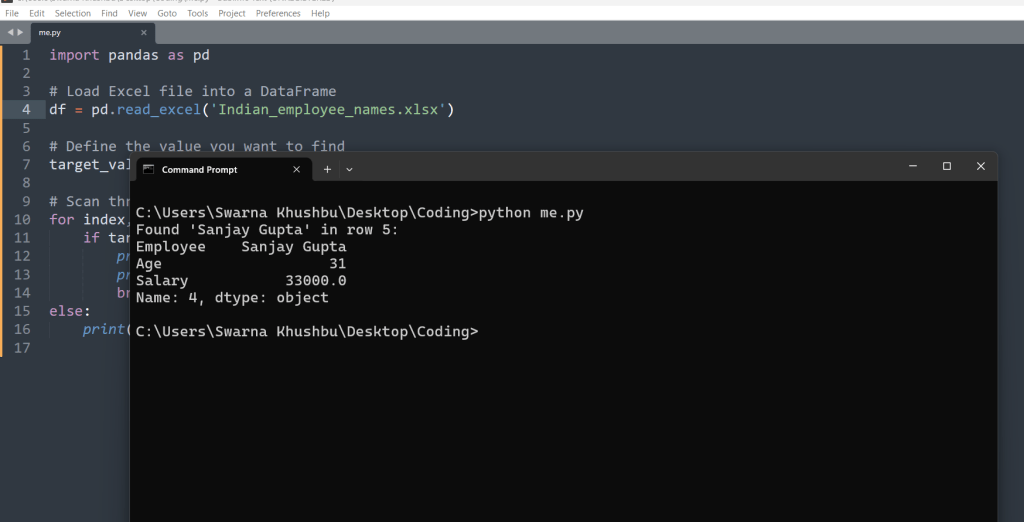
Explanation of the above code:
import pandas as pd: This imports the pandas library and assigns it the aliaspd.df = pd.read_excel('Indian_employee_names.xlsx'): This loads the Excel file ‘Indian_employee_names.xlsx’ into a pandas DataFrame calleddf.target_value = 'Sanjay Gupta': This defines the value ‘Sanjay Gupta’ that we want to find in the DataFrame.for index, row in df.iterrows():: This loop iterates over each row in the DataFrame using theiterrows()method, which returns an iterator yielding index and row data as a Series.if target_value in row.values:: This checks if the target value (‘Sanjay Gupta’) is present in the values of the current row.print(f"Found '{target_value}' in row {index + 1}:"): If the target value is found, this prints a message indicating that the value was found in the specific row.print(row): This prints the entire row containing the target value.break: This statement breaks out of the loop once the target value is found, as we are only interested in the first occurrence.else:: This part of the loop is executed if the loop completes without finding the target value.print(f"'{target_value}' not found in the Excel table."): If the target value is not found in any row, this prints a message indicating that the value was not found in the Excel table.
with the above code, you can manipulate any large set of data in your excel sheet.
In conclusion, automating the process of scanning through rows to find specific data in an Excel table using Python and pandas can significantly improve efficiency and accuracy in data analysis tasks. By leveraging the power of pandas, you can easily load Excel files, search for specific values, and extract relevant information without the need for manual intervention. This approach is particularly useful for handling large datasets, where manually searching for data would be time-consuming and error-prone.
By following the steps outlined in this tutorial, you can enhance your data analysis workflows and make them more efficient. Whether you’re searching for specific names, numbers, or other information in your Excel tables, automating the scanning process with Python and pandas can help you save time and ensure that your data analysis tasks are performed accurately.





Leave a Reply