
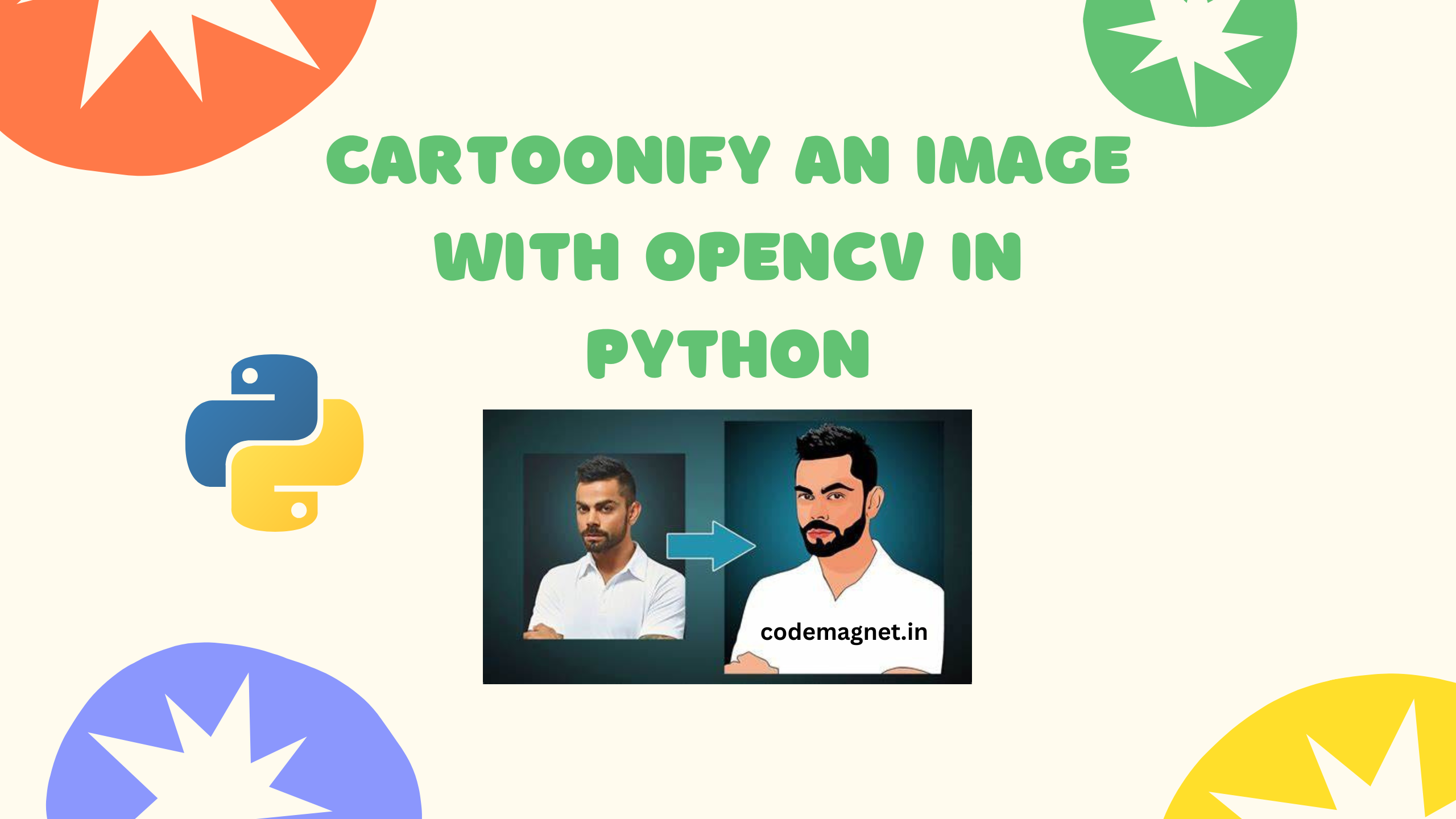
In simple terms, “cartoonify an image” means transforming a regular photo into a cartoon-style image, like those in comic books or animated movies. This process involves using OpenCV, a popular library for image processing in Python, to apply various filters and effects that give the image a cartoonish appearance.
Lets check out we can actually do it
In order to cartoonyfy the image using opencv first create a file with .py extension and then copy the code below and paste it.
Don’t forget to install below libraries first
import cv2 #for image processing
import easygui #to open the filebox
import numpy as np #to store image
import imageio #to read image stored at particular path
import sys
import matplotlib.pyplot as plt
import os
import tkinter as tk
from tkinter import filedialog
from tkinter import *
from PIL import ImageTk, Image
Full Code
import cv2 #for image processing
import easygui #to open the filebox
import numpy as np #to store image
import imageio #to read image stored at particular path

import sys
import matplotlib.pyplot as plt
import os
import tkinter as tk
from tkinter import filedialog
from tkinter import *
from PIL import ImageTk, Image

top=tk.Tk()
top.geometry('400x400')
top.title('Cartoonify Your Image !')
top.configure(background='white')
label=Label(top,background='#CDCDCD', font=('calibri',20,'bold'))

def upload():
    ImagePath=easygui.fileopenbox()
    cartoonify(ImagePath)


def cartoonify(ImagePath):
    # read the image
    originalmage = cv2.imread(ImagePath)
    originalmage = cv2.cvtColor(originalmage, cv2.COLOR_BGR2RGB)
    #print(image)  # image is stored in form of numbers

    # confirm that image is chosen
    if originalmage is None:
        print("Can not find any image. Choose appropriate file")
        sys.exit()

    ReSized1 = cv2.resize(originalmage, (960, 540))
    #plt.imshow(ReSized1, cmap='gray')


    #converting an image to grayscale
    grayScaleImage= cv2.cvtColor(originalmage, cv2.COLOR_BGR2GRAY)
    ReSized2 = cv2.resize(grayScaleImage, (960, 540))
    #plt.imshow(ReSized2, cmap='gray')


    #applying median blur to smoothen an image
    smoothGrayScale = cv2.medianBlur(grayScaleImage, 5)
    ReSized3 = cv2.resize(smoothGrayScale, (960, 540))
    #plt.imshow(ReSized3, cmap='gray')

    #retrieving the edges for cartoon effect
    #by using thresholding technique
    getEdge = cv2.adaptiveThreshold(smoothGrayScale, 255,
        cv2.ADAPTIVE_THRESH_MEAN_C,
        cv2.THRESH_BINARY, 9, 9)

    ReSized4 = cv2.resize(getEdge, (960, 540))
    #plt.imshow(ReSized4, cmap='gray')

    #applying bilateral filter to remove noise
    #and keep edge sharp as required
    colorImage = cv2.bilateralFilter(originalmage, 9, 300, 300)
    ReSized5 = cv2.resize(colorImage, (960, 540))
    #plt.imshow(ReSized5, cmap='gray')


    #masking edged image with our "BEAUTIFY" image
    cartoonImage = cv2.bitwise_and(colorImage, colorImage, mask=getEdge)

    ReSized6 = cv2.resize(cartoonImage, (960, 540))
    #plt.imshow(ReSized6, cmap='gray')

    # Plotting the whole transition
    images=[ReSized1, ReSized2, ReSized3, ReSized4, ReSized5, ReSized6]

    fig, axes = plt.subplots(3,2, figsize=(8,8), subplot_kw={'xticks':[], 'yticks':[]}, gridspec_kw=dict(hspace=0.1, wspace=0.1))
    for i, ax in enumerate(axes.flat):
        ax.imshow(images[i], cmap='gray')

    save1=Button(top,text="Save cartoon image",command=lambda: save(ReSized6, ImagePath),padx=30,pady=5)
    save1.configure(background='#364156', foreground='white',font=('calibri',10,'bold'))
    save1.pack(side=TOP,pady=50)

    plt.show()


def save(ReSized6, ImagePath):
    #saving an image using imwrite()
    newName="cartoonified_Image"
    path1 = os.path.dirname(ImagePath)
    extension=os.path.splitext(ImagePath)[1]
    path = os.path.join(path1, newName+extension)
    cv2.imwrite(path, cv2.cvtColor(ReSized6, cv2.COLOR_RGB2BGR))
    I= "Image saved by name " + newName +" at "+ path
    tk.messagebox.showinfo(title=None, message=I)

upload=Button(top,text="Cartoonify an Image",command=upload,padx=10,pady=5)
upload.configure(background='#364156', foreground='white',font=('calibri',10,'bold'))
upload.pack(side=TOP,pady=50)

top.mainloop()
Output:
Explanation of the whole code:
- Imports:
cv2: Library for image processing.easygui: Library to open a file dialog box.numpy as np: Library for array operations.imageio: Library to read images from a specific path.sys: Library for system-specific parameters and functions.matplotlib.pyplot as plt: Library for plotting graphs and images.os: Library for interacting with the operating system.tkinter as tk: Library for creating GUI applications.from tkinter import filedialog: Specific import for file dialog in tkinter.from tkinter import *: Importing all definitions from tkinter for ease of use.from PIL import ImageTk, Image: Libraries for handling images in tkinter.
- Creating GUI Window:
top = tk.Tk(): Creating the main GUI window.top.geometry('400x400'): Setting the size of the window.top.title('Cartoonify Your Image !'): Setting the title of the window.top.configure(background='white'): Setting the background color of the window.
- Defining Functions:
upload(): Opens a file dialog box for the user to select an image and then callscartoonify()function with the selected image path.cartoonify(ImagePath): Reads the selected image, converts it to grayscale, applies filters and edge detection to create a cartoon effect, and displays the transition of images using matplotlib. It also provides a button to save the cartoonified image.save(ReSized6, ImagePath): Saves the cartoonified image to the same directory as the original image and displays a message box with the path of the saved image.
- Creating Widgets:
upload: Button widget to trigger theupload()function.save1: Button widget to save the cartoonified image.label: Label widget for displaying messages.
- Running the GUI:
top.mainloop(): Starts the main event loop, allowing the GUI to handle user inputs and events.
In conclusion, the provided code demonstrates how to apply a cartoon effect to an image using OpenCV in Python. It uses various image processing techniques such as converting the image to grayscale, applying filters to smoothen and enhance edges, and finally combining the filtered image with the original color image to create a cartoon-like effect. The code also includes a graphical user interface (GUI) for users to easily upload an image, view the cartoonified result, and save the modified image. Overall, this code serves as a practical example of using OpenCV for image manipulation and provides a fun way to transform images into cartoon-style artworks.





Leave a Reply