

Calculating the difference between two dates in Excel can be a useful task, especially when dealing with data analysis or project management. Python automation offers a convenient way to achieve this, allowing you to streamline the process and save time.
When working with dates in Excel, you may encounter situations where you need to determine the duration between two dates. This could be for various reasons, such as calculating the number of days between two events, determining the length of a project, or tracking the age of a product.
Using Python automation, you can easily calculate the difference between two dates in an Excel spreadsheet. By leveraging libraries like openpyxl, you can read the dates from your Excel file, perform the necessary calculations, and then write the results back to the spreadsheet.
This approach offers several advantages. First, it eliminates the need for manual calculations, which can be time-consuming and error-prone. Second, it allows you to automate the process, making it easier to handle large datasets or recurring tasks. Finally, it provides a flexible and customizable solution, allowing you to tailor the calculations to your specific requirements.
In this article, we’ll explore how to calculate the difference between two dates in Excel using Python automation. We’ll demonstrate the process step-by-step, from reading the dates from an Excel file to writing the results back to the spreadsheet. By the end, you’ll have a clear understanding of how to use Python to automate date calculations in Excel, empowering you to work more efficiently with date data in your projects.
Let’s start with the Python Code –
First of all create a file in your editor and save it with .py extension(in my case it is me.py)
Next let’s create a excel sheet with Python which has three column ‘Date1‘, ‘Date2‘ and ‘Difference Respectively.’
import openpyxl
from openpyxl import Workbook
from openpyxl.utils import get_column_letter
from datetime import datetime, timedelta
import random

# Create a new Excel workbook
wb = Workbook()

# Select the active sheet
sheet = wb.active

# Add headers
sheet['A1'] = 'Date 1'
sheet['B1'] = 'Date 2'
sheet['C1'] = 'Difference'
Now in the above code let us add some random date in column 1 and column. 2
# Add random dates to columns A and B
for row in range(2, 7):
    date1 = datetime.today() - timedelta(days=random.randint(1, 365))
    date2 = datetime.today() - timedelta(days=random.randint(1, 365))
    sheet[f'A{row}'] = date1
sheet[f'B{row}'] = date2Explanation:
for row in range(2, 7):- This line starts a for loop that iterates over a range of rows from 2 to 6 (inclusive). It will execute the following block of code for each row in this range.
date1 = datetime.today() - timedelta(days=random.randint(1, 365))- This line generates a random date by subtracting a random number of days (between 1 and 365) from the current date (datetime.today()). It uses the
timedeltafunction from thedatetimemodule to represent a duration of time (in this case, a number of days).
- This line generates a random date by subtracting a random number of days (between 1 and 365) from the current date (datetime.today()). It uses the
date2 = datetime.today() - timedelta(days=random.randint(1, 365))- Similar to the previous line, this line generates another random date for column B.
sheet[f'A{row}'] = date1- This line assigns the value of
date1to cell A[row], whererowis the current row in the loop. Thef'A{row}'syntax is used to create a formatted string with the row variable embedded in the cell address.
- This line assigns the value of
sheet[f'B{row}'] = date2- Similar to the previous line, this line assigns the value of
date2to cell B[row].
- Similar to the previous line, this line assigns the value of
Overall, this code snippet loops through rows 2 to 6, generates random dates for columns A and B, and assigns these dates to the corresponding cells in the Excel spreadsheet.
Now that we have a Excel sheet with random dates in two columns, our last task is to find the difference between them. Let us write the code for that –
# Calculate the difference for each row
for row in range(2, sheet.max_row + 1):
    date1 = sheet[f'A{row}'].value
    date2 = sheet[f'B{row}'].value
    if date1 and date2:  # Check if both dates are not empty
        difference = abs((date2 - date1).days)  # Calculate the difference in days
sheet[f'C{row}'] = differenceExplanation:
for row in range(2, sheet.max_row + 1):- This line starts a loop that iterates over each row in the Excel sheet, starting from row 2 up to the maximum number of rows in the sheet (
sheet.max_row).
- This line starts a loop that iterates over each row in the Excel sheet, starting from row 2 up to the maximum number of rows in the sheet (
date1 = sheet[f'A{row}'].value- This line retrieves the value of the date in column A for the current row (
row) and assigns it to the variabledate1.
- This line retrieves the value of the date in column A for the current row (
date2 = sheet[f'B{row}'].value- Similar to the previous line, this line retrieves the value of the date in column B for the current row and assigns it to the variable
date2.
- Similar to the previous line, this line retrieves the value of the date in column B for the current row and assigns it to the variable
if date1 and date2:- This line checks if both
date1anddate2are not empty. If either of them is empty, it skips the calculation for that row.
- This line checks if both
difference = abs((date2 - date1).days)- This line calculates the difference in days between
date2anddate1using thedaysattribute of the timedelta object. Theabsfunction is used to ensure the result is always positive.
- This line calculates the difference in days between
sheet[f'C{row}'] = difference- Finally, this line assigns the calculated difference to column C for the current row.
Now finally save the excel with the below code:
# Save the workbook
wb.save('random_dates.xlsx')
Combination of above code – Full Code
import openpyxl
from openpyxl import Workbook
from openpyxl.utils import get_column_letter
from datetime import datetime, timedelta
import random

# Create a new Excel workbook
wb = Workbook()

# Select the active sheet
sheet = wb.active

# Add headers
sheet['A1'] = 'Date 1'
sheet['B1'] = 'Date 2'
sheet['C1'] = 'Difference'

# Add random dates to columns A and B
for row in range(2, 7):
    date1 = datetime.today() - timedelta(days=random.randint(1, 365))
    date2 = datetime.today() - timedelta(days=random.randint(1, 365))
    sheet[f'A{row}'] = date1
    sheet[f'B{row}'] = date2

# Calculate the difference for each row
for row in range(2, sheet.max_row + 1):
    date1 = sheet[f'A{row}'].value
    date2 = sheet[f'B{row}'].value
    if date1 and date2:  # Check if both dates are not empty
        difference = abs((date2 - date1).days)  # Calculate the difference in days
        sheet[f'C{row}'] = difference

# Save the workbook
wb.save('random_dates.xlsx')
Output:
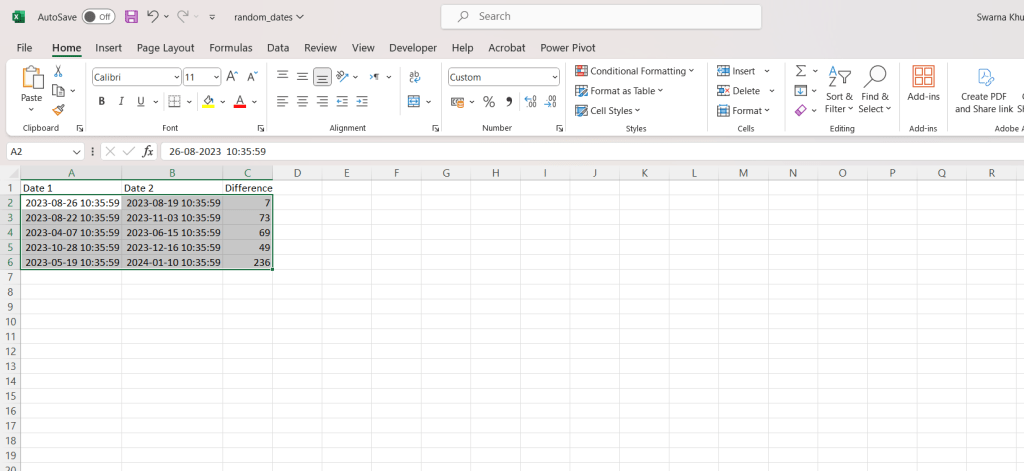
Calculating the difference between two dates in Excel using Python automation is a powerful way to streamline data processing. By automating this task, you can quickly and accurately determine the duration between any two dates in your Excel spreadsheet. This process involves using Python libraries such as openpyxl to interact with Excel files, datetime to work with dates, and timedelta to calculate the difference between dates.
In conclusion, Python automation offers a convenient and efficient method to calculate date differences in Excel, saving you time and effort while ensuring accuracy in your data analysis and reporting tasks.
Check out more on excel automation





Leave a Reply